
![[img]](/site/images/menu/menu_products_services.png)
![[img]](/site/images/menu/menu_solutions.png)
![[img]](/site/images/menu/menu_support.png)
![[img]](/site/images/menu/lock_users.png)
![[img]](/site/images/menu/set_logo_149x61.png)
![[img]](/site/images/menu/menu_partners.png)
![[img]](/site/images/menu/mezera.png)
![[img]](/site/images/menu/line_vertical.png)
![[img]](/site/images/menu/lock_partners.png)
![[img]](/site/images/menu/menu_about.png)


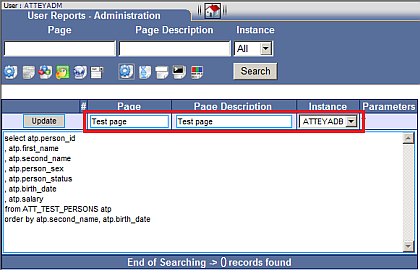
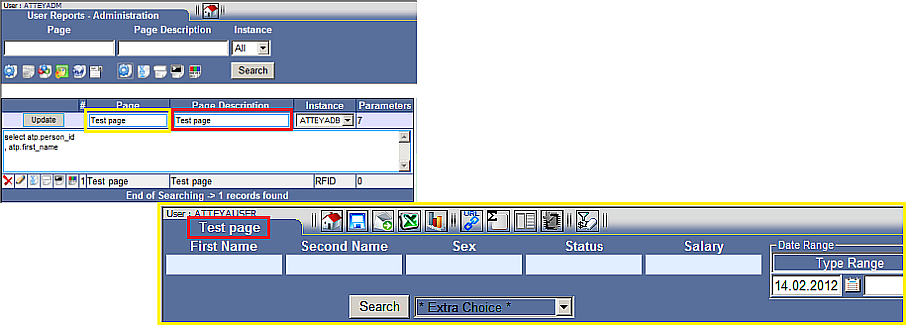
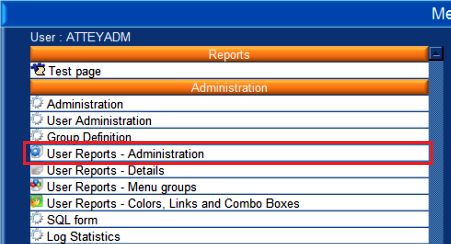 Click on "User Reports Administration'' in the "Administration" section, see Fig. No.1. Enter future name of a page in the form, field “Page“ and "Page Description". The text in field "Page Description" is shown in the heading of a form (module) and the text in field "Page" is shown in the main menu. Further, it is necessary to set a database instance, if more of them are defined, see fig.No.2.
A text field for entering the basic SQL query is shown upon a click in the field below the line. SQL Intelligent provides some processes automatically and that is why it is necessary to adhere to essential procedures.
 a. The first column should be a unique line index. The program will try to prepare summing according to it later on, it will make graphic jumps.
b. Each column should have its own unique alias, sorting will be done according to it. If two similar ones are defined, an error will occur in the resulting SQL query.
 c. It is possible to use variables &ORG_ID and &SOB_ID in a report, which applies only to an installation with Oracle E-Business Suite, that mean organizations or sets of ledgers from the basic combo-box. These combo-boxes will be displayed only if the variable is used.
 d. All tables should be used with the APPS prefix, e.g. APPS.MTL_SYSTEM_ITEMS. They can function even without it, but only in case that ApplStream® uses directly the APPS database user for connecting to the database (applies to Oracle E-Business Suite).
 Within the given example (Fig.No.3) we define page “Test Page” and we start with the basic SQL only for an item. All, what we enter now, will be a minimum of what will be visible on the page.
 Applies to Oracle E-Business Suite
We have used the &ORG_ID parameter and so a combo-box for organizations has been also added to the resulting form.
A report is created upon pressing the “Enter” key.
It is in the “Update” state now and all entered parameters can be modified Fig. No.4.
- Page
- Page Description
- Instance
- Basic SQL
This can be done after a change by the “Update” key on the left side in the form.
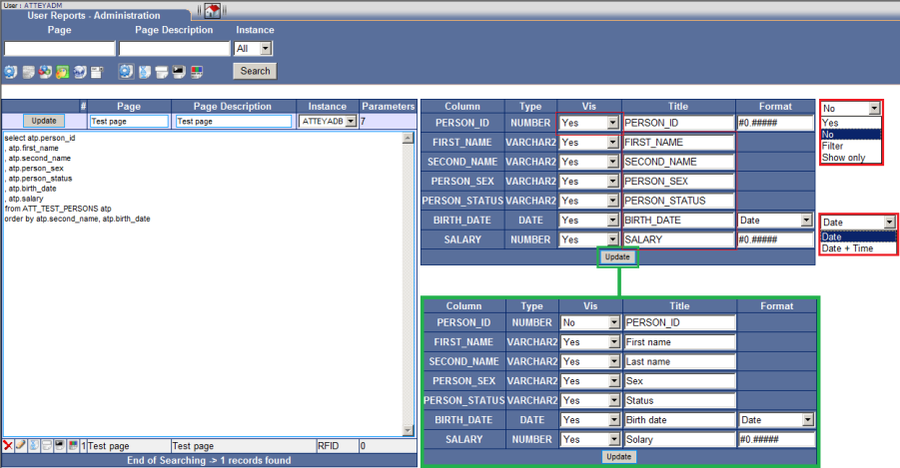
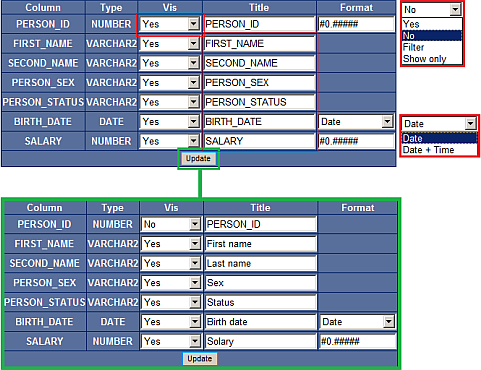
Fig. No. 4 shows all parameters, which will create columns in the report.
We enter a description with which we want to denominate the column in the report into the white field.
For saving, it is necessary to push the “Update” key on the right below the listing of parameters.
Column "Column" is the SQL identification of a parameter
Column "Type" is the type of a parameter
Column "Vis" the visibility of a column in a report
Column "Title" the denomination of column in a report.
Column "Format" XXX
If you entered a unique line index, then it is appropriate to make it invisible by scratching it out from the list (e.g. PERSON_ID "No"). This way you can make invisible any number of future columns in a listing.
Only the first of them will be used for summing the report.
Fig. No. 4 Column
Vis
- Yes -
- No -
- Filter -
- Show only -
Format
- Date -
- Date + Time -
 Upon clicking the “Udate” key it is necessary to check whether all parameters were downloaded correctly.
Click the page denomination (“Test page” in our case) in the created form, see Fig. No 5.



