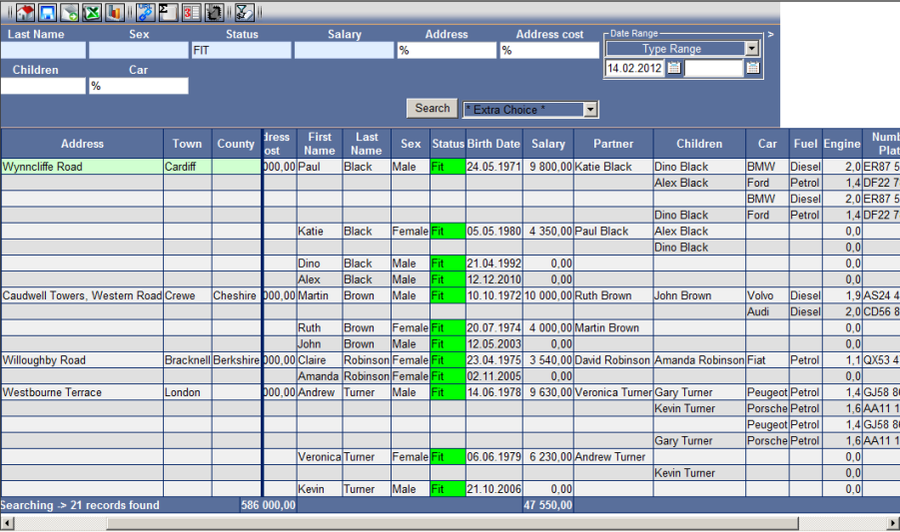
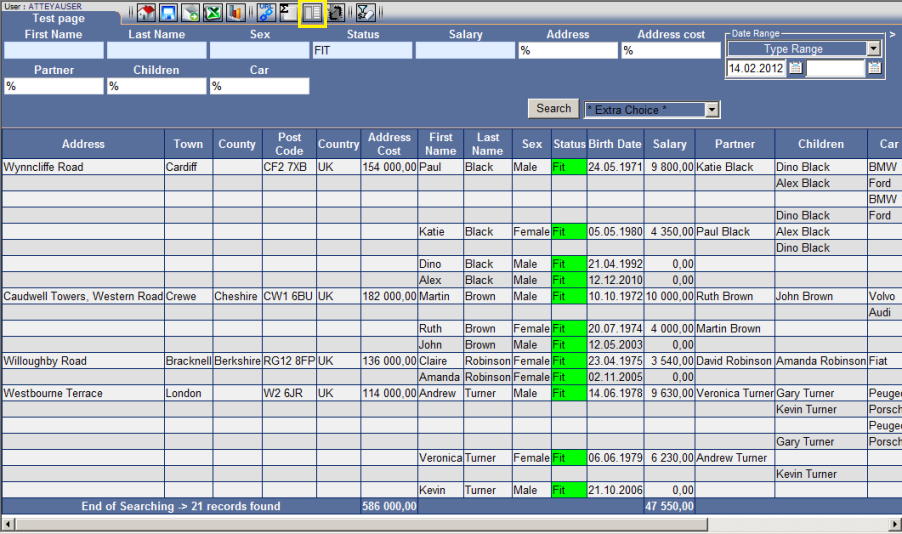
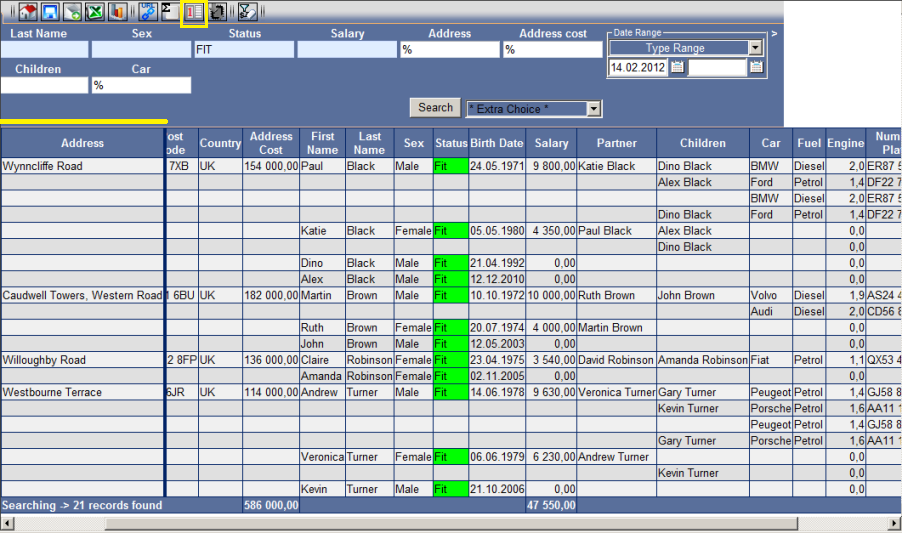
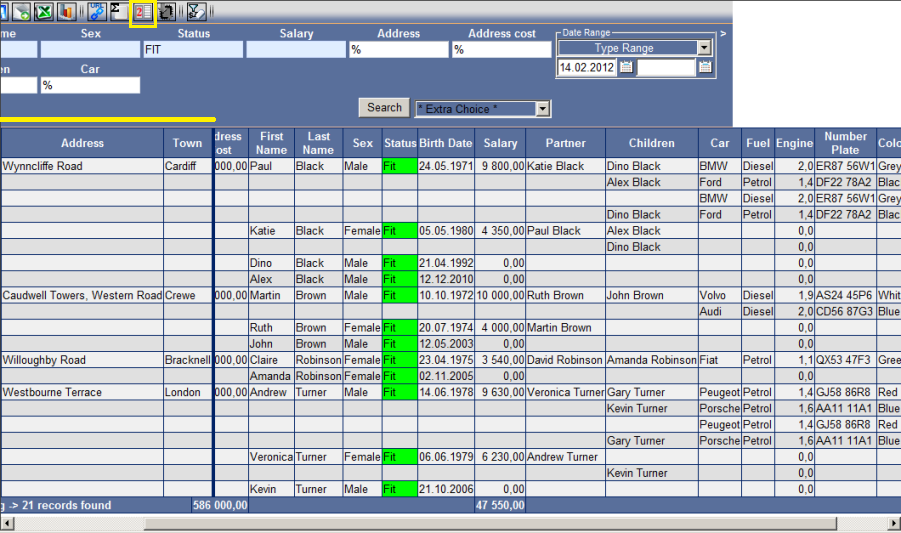
Lock column
Sequential function - switch to the icon in several states with a different result.
To use the function:
- Adjust the data in the report as you need
- Set the Lock column function to the desired state
- Activate by the "Search" button.
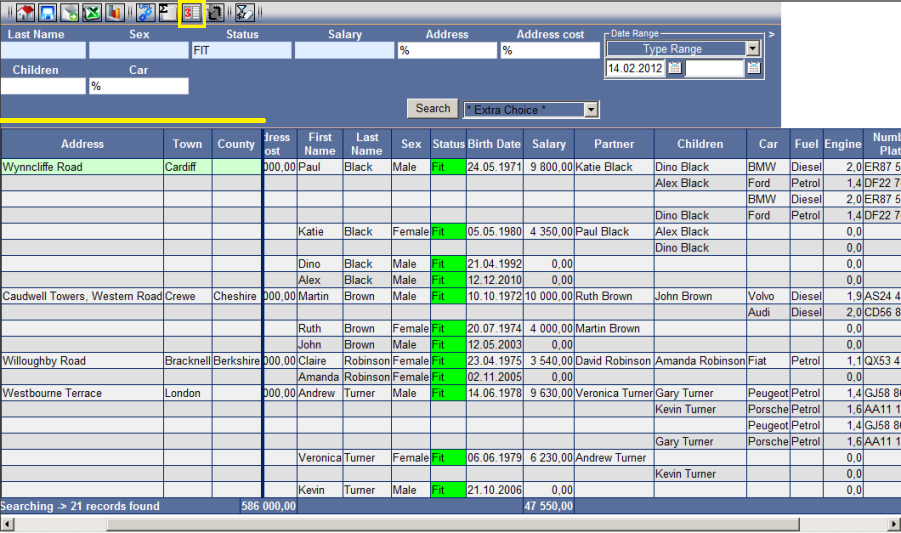
Locking columns is advisable when you have a wide report on your screen and moving from left to right moves left columns (data) out of the screen.
You may use the lock option to prevent basic entities in the first, second or third columns of the report from moving outside of the screen.
Clicking on the "Lock column" icon will select the number of columns to be locked (1, 2, 3). Confirm by pressing "Search". The first columns remain on the screen when moving.

![[img]](/site/images/menu/menu_products_services.png)
![[img]](/site/images/menu/menu_solutions.png)
![[img]](/site/images/menu/menu_support.png)
![[img]](/site/images/menu/lock_users.png)
![[img]](/site/images/menu/set_logo_149x61.png)
![[img]](/site/images/menu/menu_partners.png)
![[img]](/site/images/menu/mezera.png)
![[img]](/site/images/menu/line_vertical.png)
![[img]](/site/images/menu/lock_partners.png)
![[img]](/site/images/menu/menu_about.png)