
![[img]](/site/images/menu/menu_products_services.png)
![[img]](/site/images/menu/menu_solutions.png)
![[img]](/site/images/menu/menu_support.png)
![[img]](/site/images/menu/lock_users_cz.png)
![[img]](/site/images/menu/set_logo_149x61.png)
![[img]](/site/images/menu/mezera.png)
![[img]](/site/images/menu/menu_partners.png)
![[img]](/site/images/menu/line_vertical.png)
![[img]](/site/images/menu/lock_partners_cz.png)
![[img]](/site/images/menu/menu_about.png)

When setting up a new template, type in the template name to the name field and a description which is applicable to the administrator. Once saved, the detail will be shown in the list below.
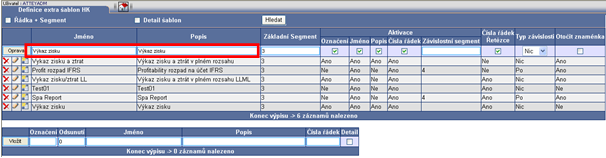
Basic parameter setting of template design and function
Basic segment – Choose a number of an account chain segment which is a basic key to a template. Allocate the correct number in the basic search window in the top left „‘‘Account Level“ drop down list. Generally, it is a segment which is in Oracle EBS used as „‘‘Account“. E.g. no. 3
|
Column template activation
|
|
|

Line number/string – for this column we can choose one of two basic types of numbering
a. Numerical; you can insert as numbers and lines and sort as numerical values 01, 02 , 1, 2, 3,
b. String; can be inserted as numbers and letters. This displays as alpha-numeric values 01, 1, 11, 2a, 2b, 3, 33, 4 …
Dependency type – here we can choose dependency type between each line of account string, the way we want to save it.
Mark turn round – we activate this option only when we consider the final use of the template and mark in front of valuation. This option relates to settings and data in IS of ORACLE EBS.
In fact the only thing it does in the template is change on each line valuation „+“ to „-“ and „-“ to „+“ NOTHING ELSE.





