
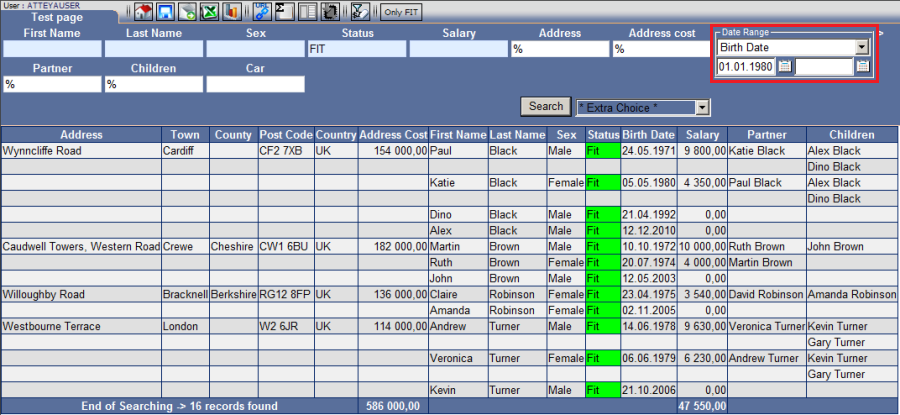
A correct entry can significantly reduce the time of report generation, while a large timeline may increase the time necessary for the report to generate. This time is also affected by other parameters set in the form.
Options
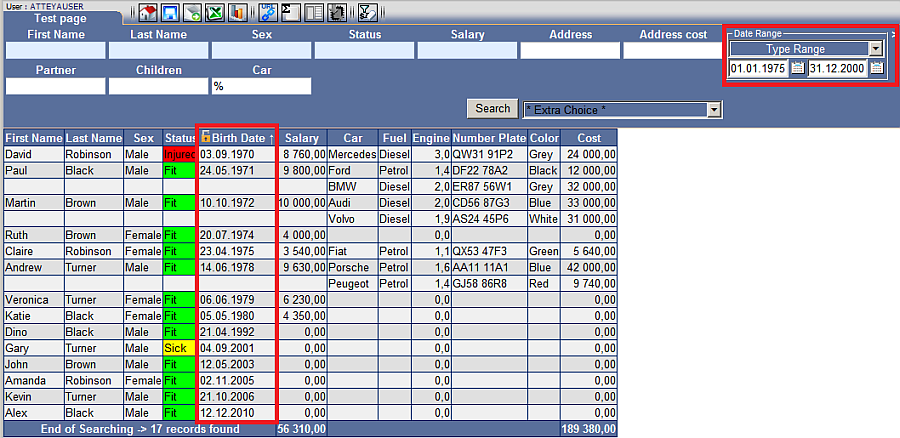
| Fig. No. 2 You always need to select "Type Range", otherwise the date range "from" - "to" will not enter into effect. |
 |
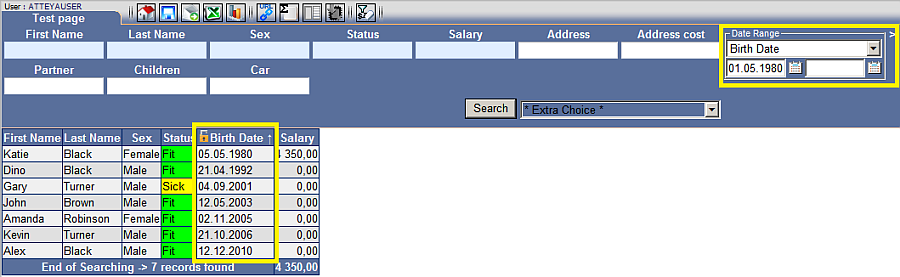
| Fig. No. 3 If you enter a date only in the first field, it always applies as "from" this date - "until" today, if the second field is empty. |
 |
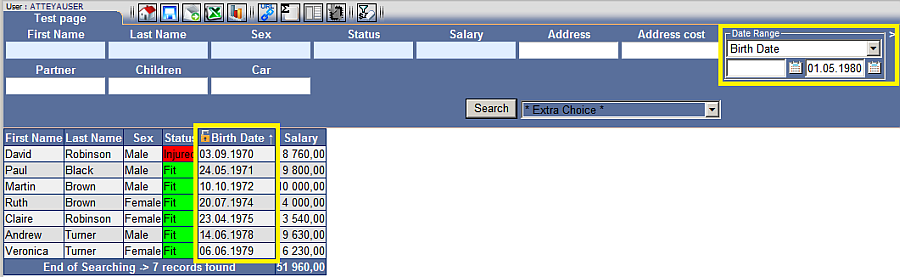
| Fig. No. 4 If a date is entered only in the second field and the first is left empty, it applies "from" the implementation of the system (DB) "until" the value you entered. |
 |
| Fig. No. 5 Displays a variant for entering the date "from" - "to". |
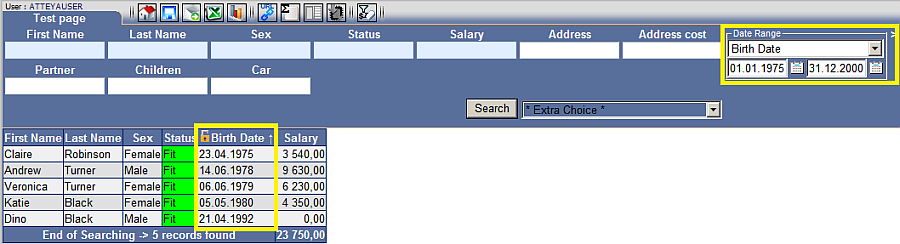 |
| Fig. No. 6 If you want to affect the contents of the report by two types of date ranges, click on the arrow on the top right near the date range. This will display a second date range. |
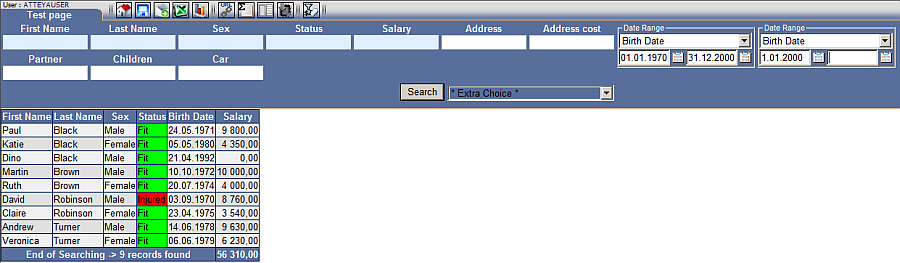 |
The types in the date range are affected when configuring the module.
When activating "Date Range", the type of date is automatically displayed with the values of a new column in the report only if this is enabled in the configuration.