
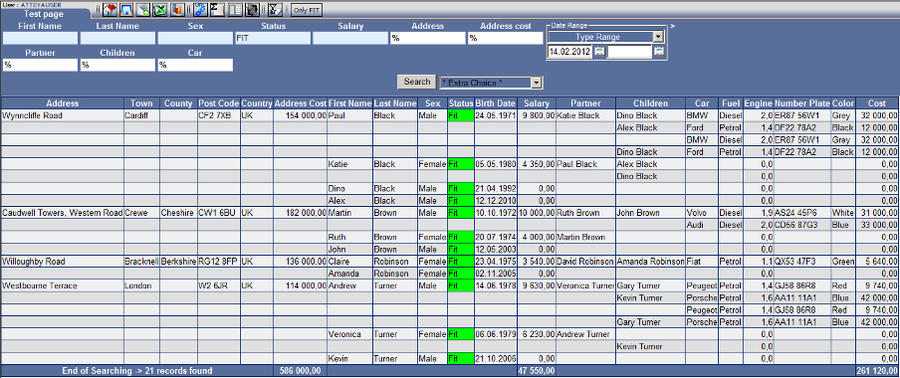

Procedure
Set the report to the default position, as you want it to be generated in the future, and click on the "Save" icon.
In the form, set the additional parameters, fill in "Link code" and "Link description" and save. In the main menu on the right, a new line will be displayed in the "Favorites" section with your name and description - Fig. No. 3. In each module on the functions tab, you will find your first 10 favorite reports.
Fig. No. 1
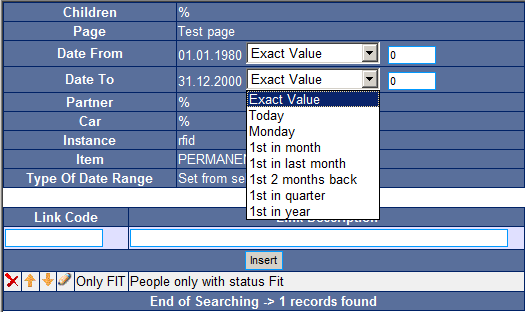 Setting parameters when saving:
If a "Date Range" is set in the report, the possibility of changing the preferences of time updating for future generation will be displayed when saving.
Options
- "Exact Value" - The report is generated with the currently set value in "Date Range".
- "Today" - The report is generated "from" or "until" each current day as soon as the report is activated.
- "Monday" - The report is generated "from" or "until" each Monday in the current week.
- "1st in month" - The report is generated "from" or "until" each first day in the current month.
- "1st in last month" - The report is generated "from" or "until" each first day in the previous month.
- "1st 2 months back" - The report is generated "from" or "until" each first day of the month 2 months back.
- "1st in quarter" - The report is generated "from" or "until" the first day of the current quarter.
- "1st in year" - The report is generated "from" or "until" each first day in the current year.
The free field can be used to enter a positive or negative numerical value which will represent the number of days to be added or subtracted to the selected value in the combo box.
Example
- If you want to generate a report always from Sunday, select "Monday" and enter the value "-1" = Sunday.
- If you want to generate a report always on the 15th in each month, select "1st in month" and enter the value "14" = each 15th day of the month.
- If you want to generate a report always on the last day of the previous year, enter "1st in year" and enter the value "-1" = always 31st December.
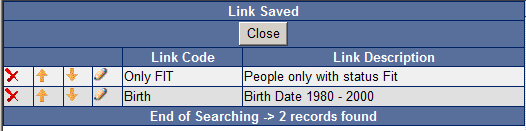 Fig. No. 2
Administration of saved reports:
Options
 Delete line with saved report.
 Use your arrows to move reports in the Main menu and the tab.
 Renaming a saved report and changing its description. The change must always be applied by pressing "Update".
 Clicking on the name allows you to adjust the currently set parameters.